



 OFFERS
Sometimes people want to move their YouTube channel to another email. Maybe they made a new Gmail account. Maybe they want to use a business email. Some people also give the channel to a friend or team member. The good thing is you can transfer a YouTube channel without losing your videos or subscribers.
The process is not very hard. You just need to follow some simple steps carefully. If you do everything correctly, your channel will stay safe.
What Happens After Transfer?
When you transfer your YouTube channel, these things stay safe:
- Videos
- Subscribers
- Likes
- Comments
- Watch time
Your fans will not notice anything different.
Step 1: Go to YouTube Settings
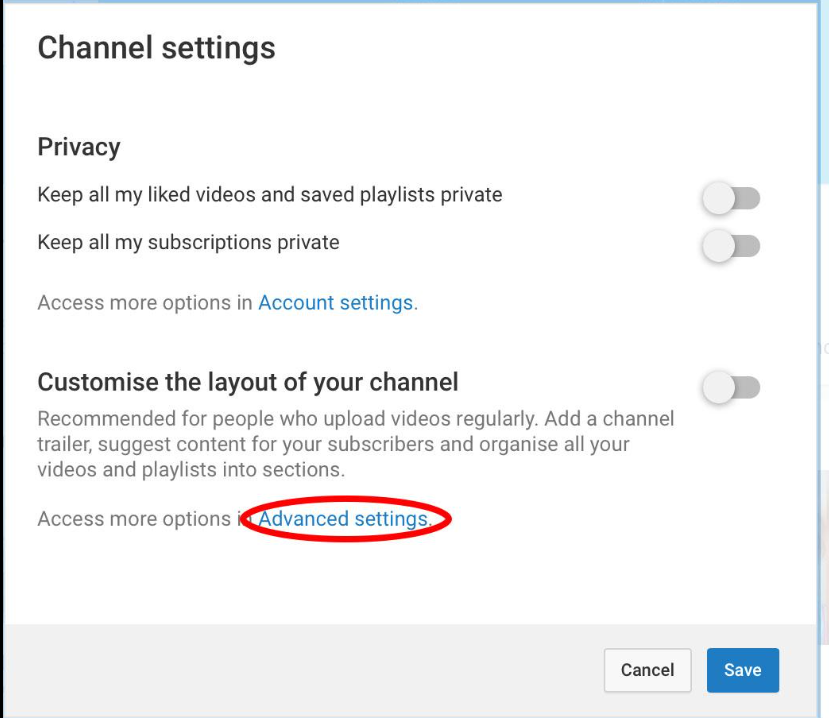
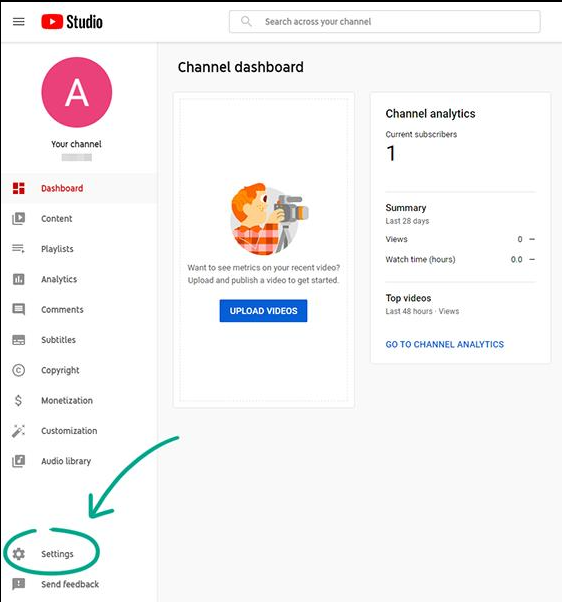
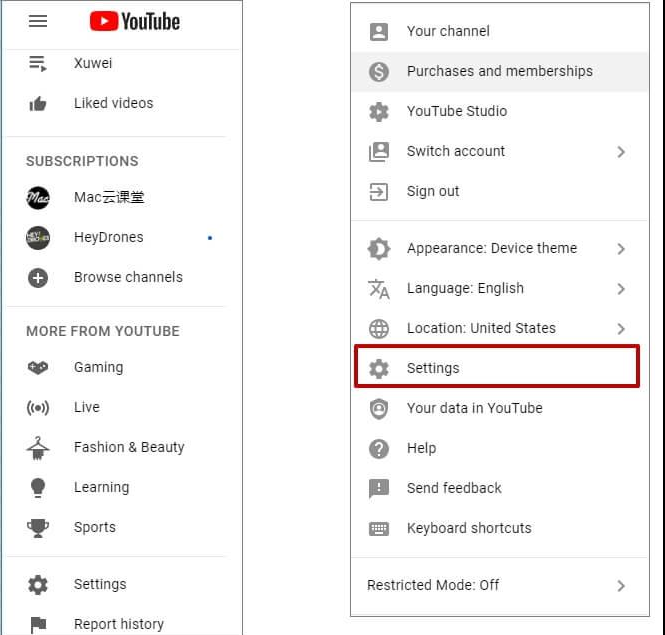
First open YouTube and sign in to your account. Then click your profile picture at the top corner. After that, click on Settings.
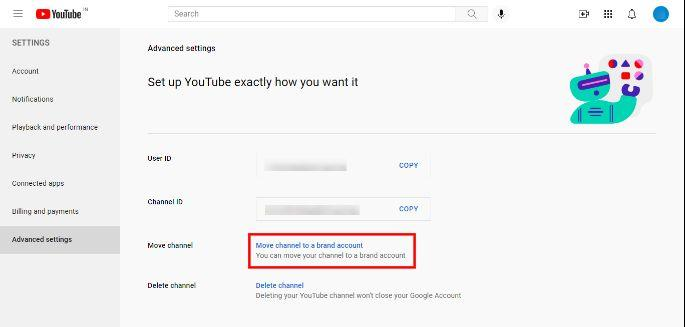
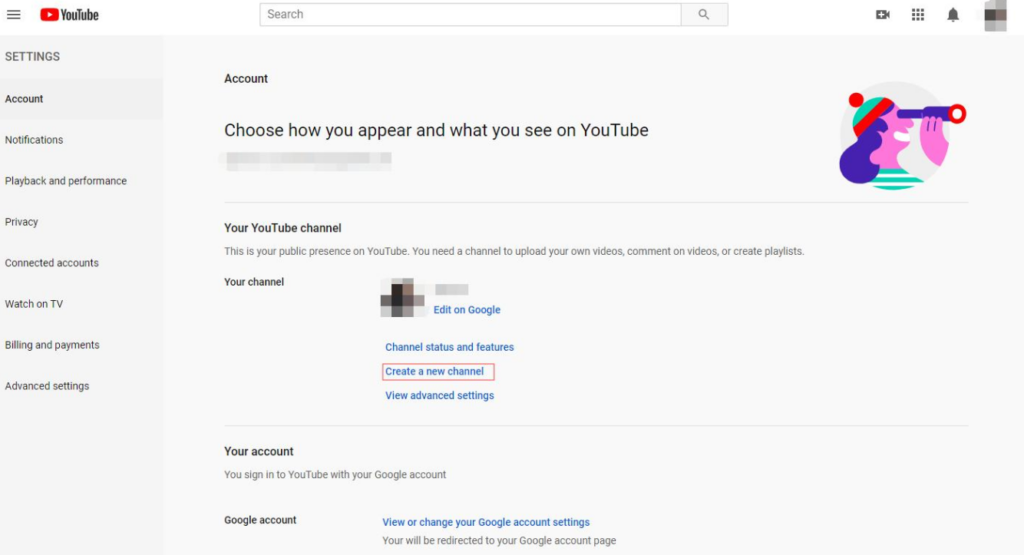
Now go to Advanced Settings. Here you can check if your channel is already a Brand Account.
A Brand Account is important because it lets you transfer the channel to another email.
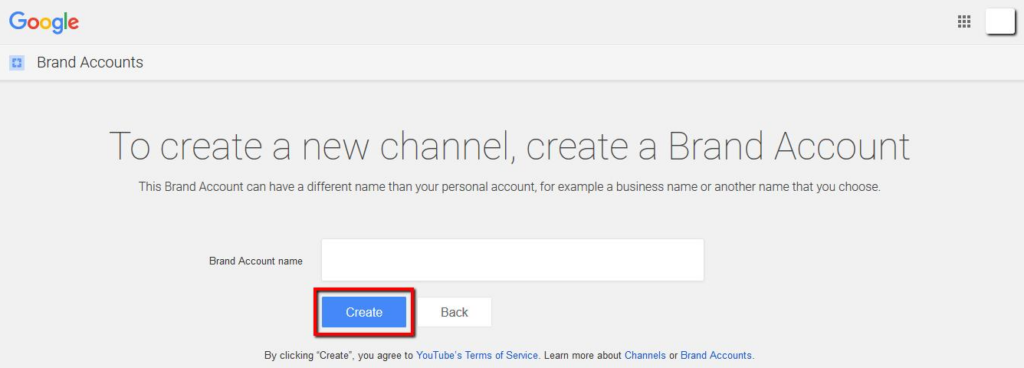
Step 2: Change to a Brand Account
If your channel is not a Brand Account, don’t worry. You can change it easily.
Click : Move Channel to Brand Account
Then follow the instructions on the screen. It may take a few minutes.
After this, your channel will be ready for transfer.
Step 3: Add the New Email
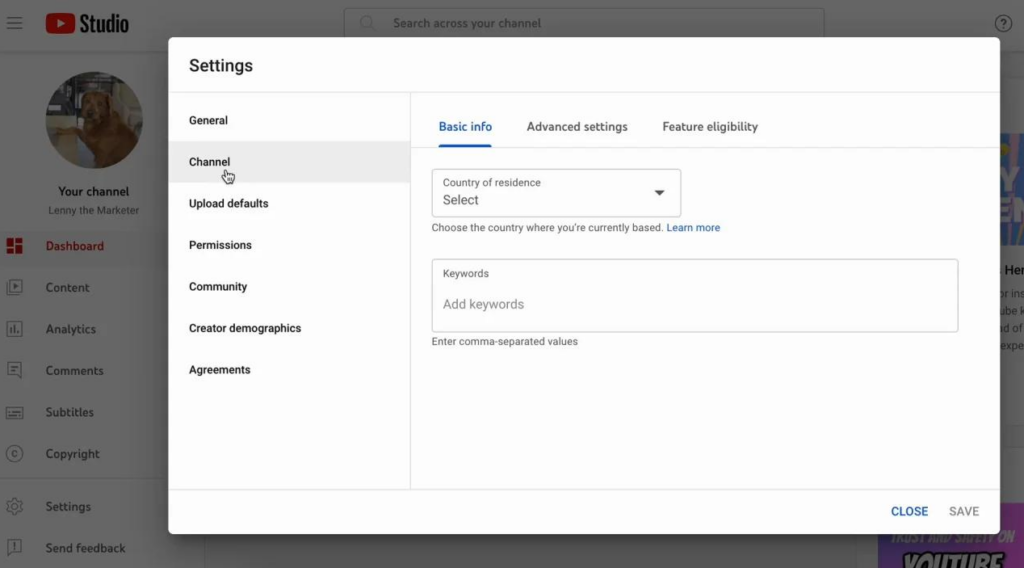
Now you need to add the new email account.
Follow these steps:
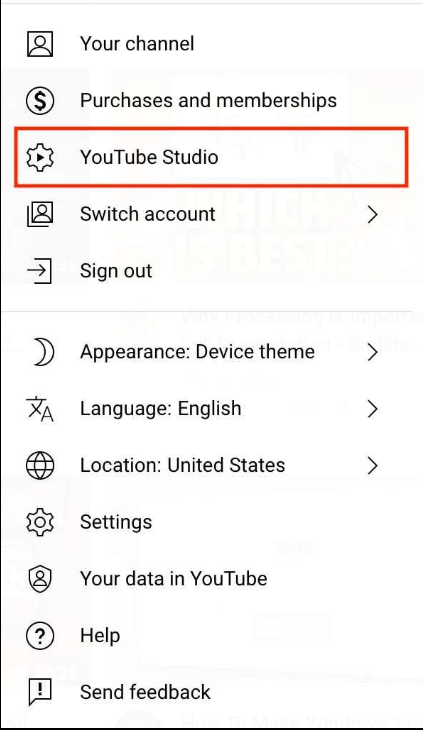
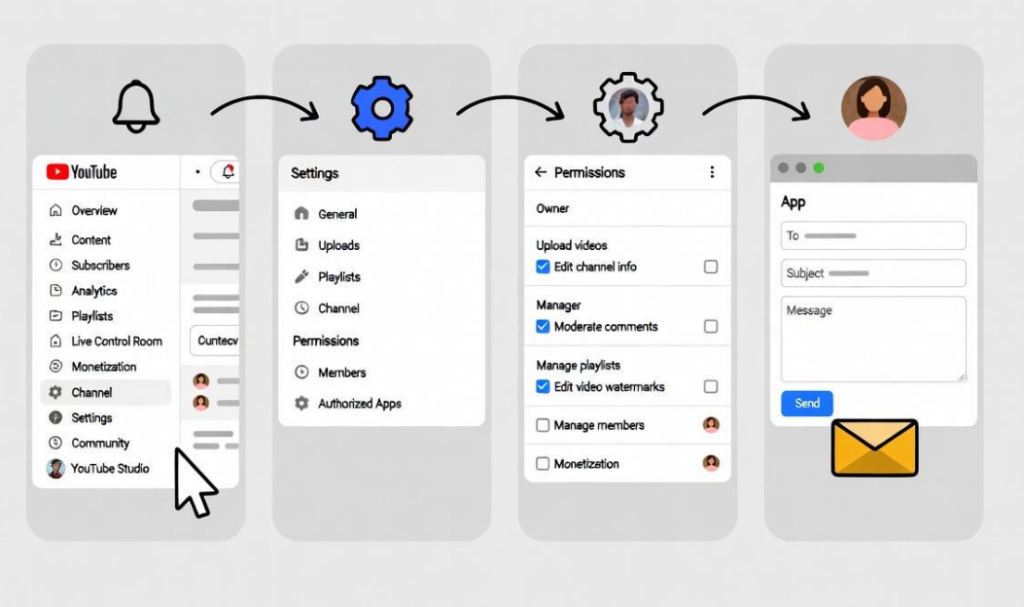
- Open YouTube Studio
- Click Settings
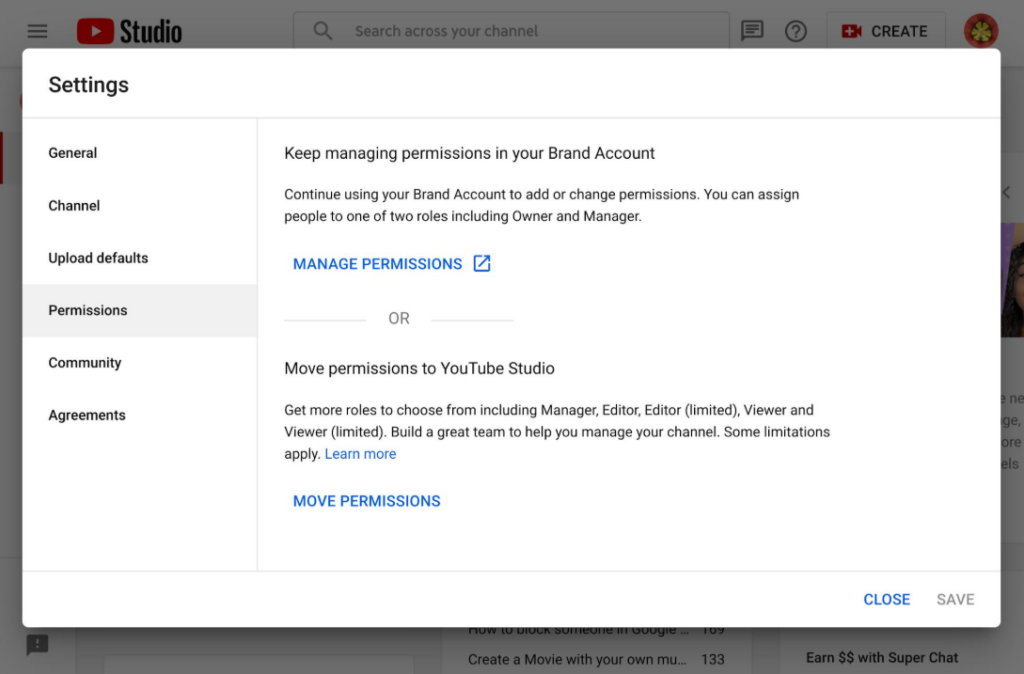
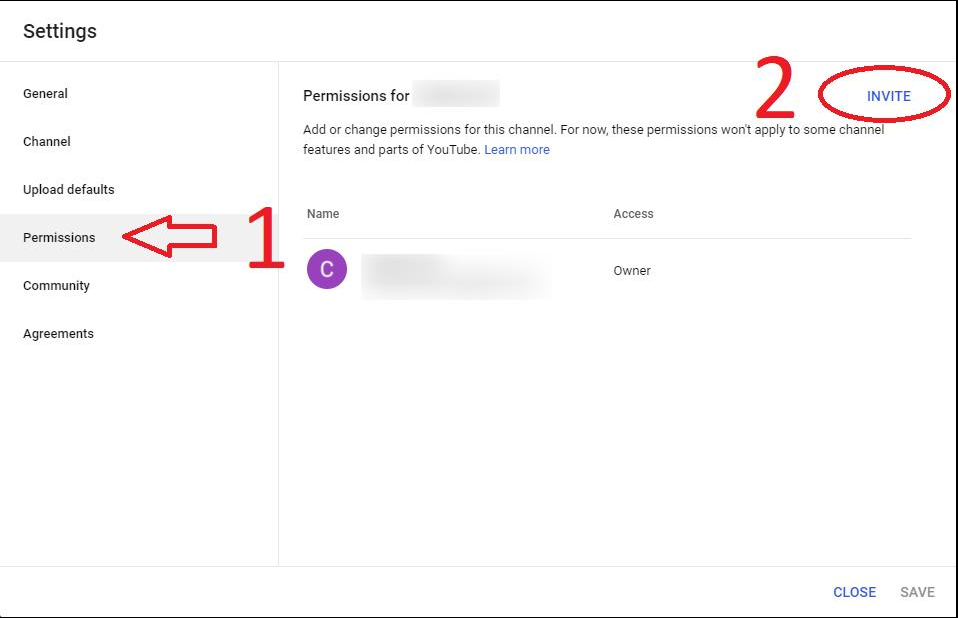
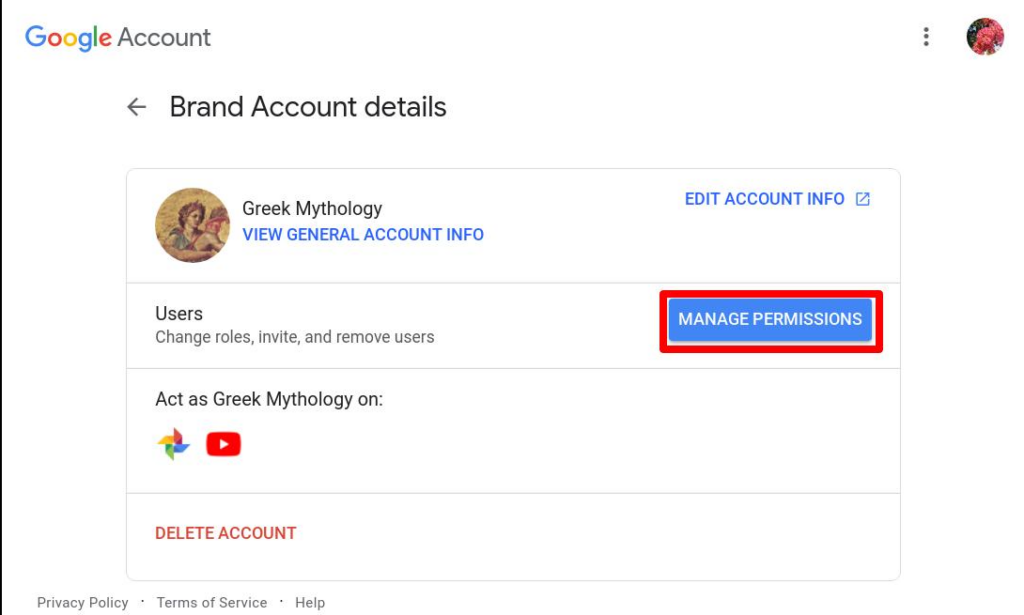
- Click Permissions
- Press Invite
- Type the new email address
- Choose Manager
- Click Save
Now the other email will get an invite message.
This part is very important because YouTube needs permission before changing ownership.
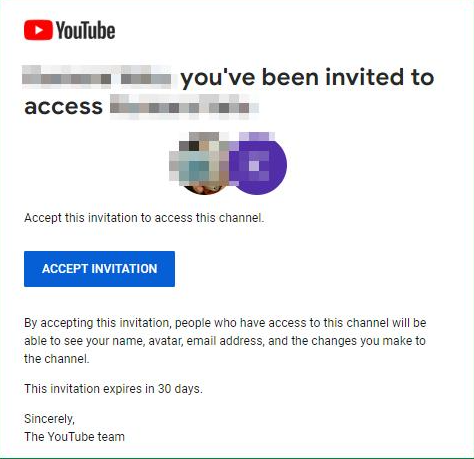
Step 4: Accept the Invitation
Open the new email inbox and find the invitation from YouTube.
Click: Accept Invitation
Now the new email can access the channel.
The new account is now a manager, but not the main owner yet.
Step 5: Make the New Email the Owner
YouTube makes you wait for 7 days before changing the main owner. This helps keep channels safe from hackers.
After 7 days:
- Go back to Permissions
- Find the new email
- Change the role to Primary Owner
- Confirm the change
Done. The new email now owns the YouTube channel.
Step 6: Remove the Old Email
If you want you can remove the old email later.
Go to:
Permissions → Remove Access
Only remove it after checking that the new owner can fully use the channel.
Common Problems
Sometimes people face small problems during transfer.
Invite Not Showing
Check the spam folder or make sure the email spelling is correct.
Cannot Change Owner
You may need to wait the full 7 days first.
No Brand Account
You must change the channel into a Brand Account before transferring it.
Stay Safe
It is always smart to protect your account.
You should:
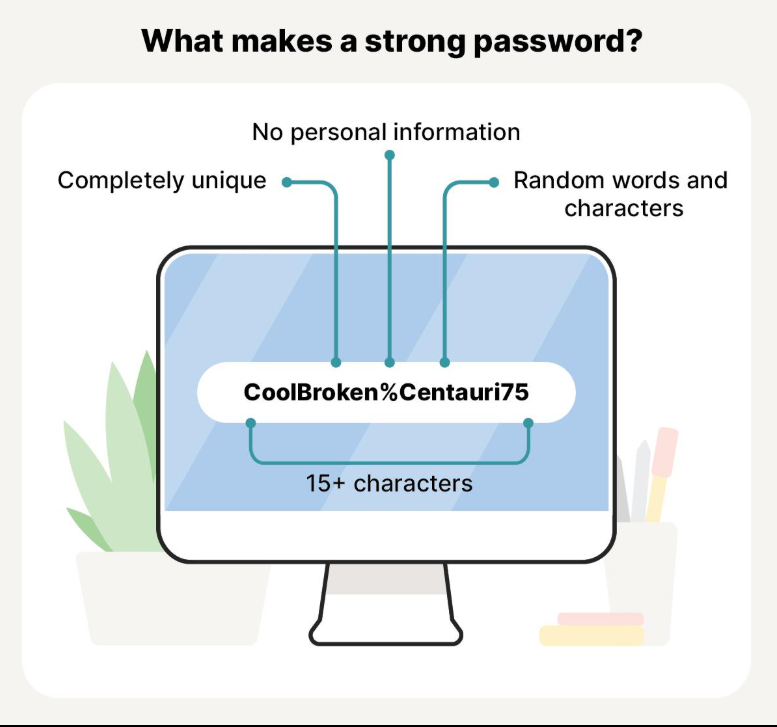
- Use a strong password
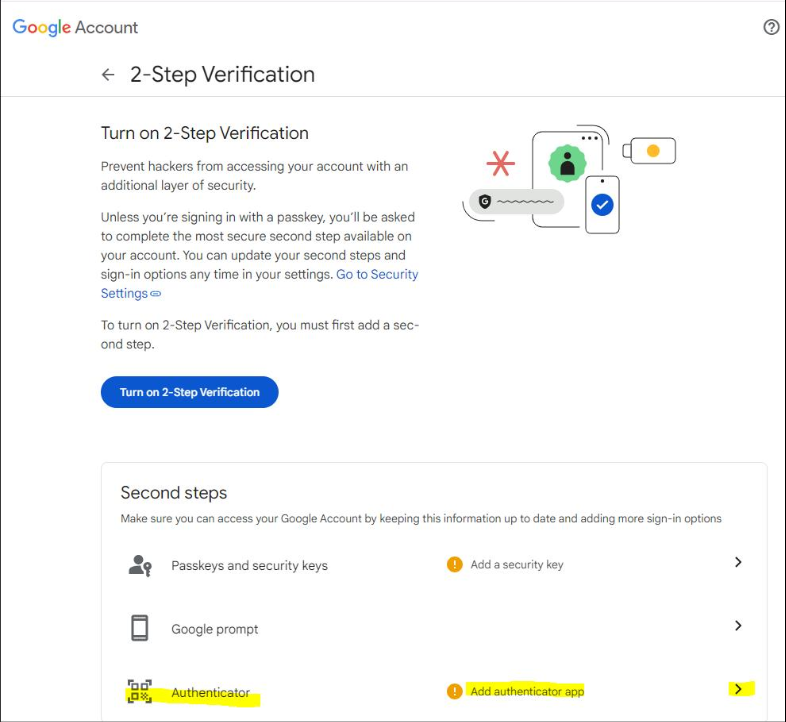
- Turn on two step verification
- Never share passwords with strangers
Keeping your channel safe is very important. Especially if your channel is growing fast.
Final Thoughts
Transferring a YouTube channel to another email is simple when you follow the steps slowly. First make your channel a Brand Account. Then add the new email as manager. After waiting 7 days, you can make the new email the main owner.
Your videos, subscribers, and hard work will stay safe. So don’t worry and take your time while doing each step carefully.