



 OFFERS

Instagram Stories are one of the most active features on Instagram. They provide fun ways to share moments in life, promote content, and connect with followers. However, many users frequently ask the same question:
What is the procedure for adding multiple photos in an Instagram Story?
The good news is that there exist numerous great ways to add multiple photos in a single story on your Android or iPhone. In this guide, we will walk you through all possible methods step by step so that you can choose what suits you best.
Why You Should Add Multiple Photos to an Instagram Story:
Adding more than one picture in the same story will help you:
- Share more moments at once.
- Make collages or layouts.
- Save time instead of posting many stories.
- Make your stories more creative and engaging.
- Visually tell an entire story.
It helps increase the quality of content instantly, whether you are a creator, a business holder, or just a casual user.
Method 1: Add Multiple Photos Using the Layout Feature (Built-in)
This is the easiest and most popular method.

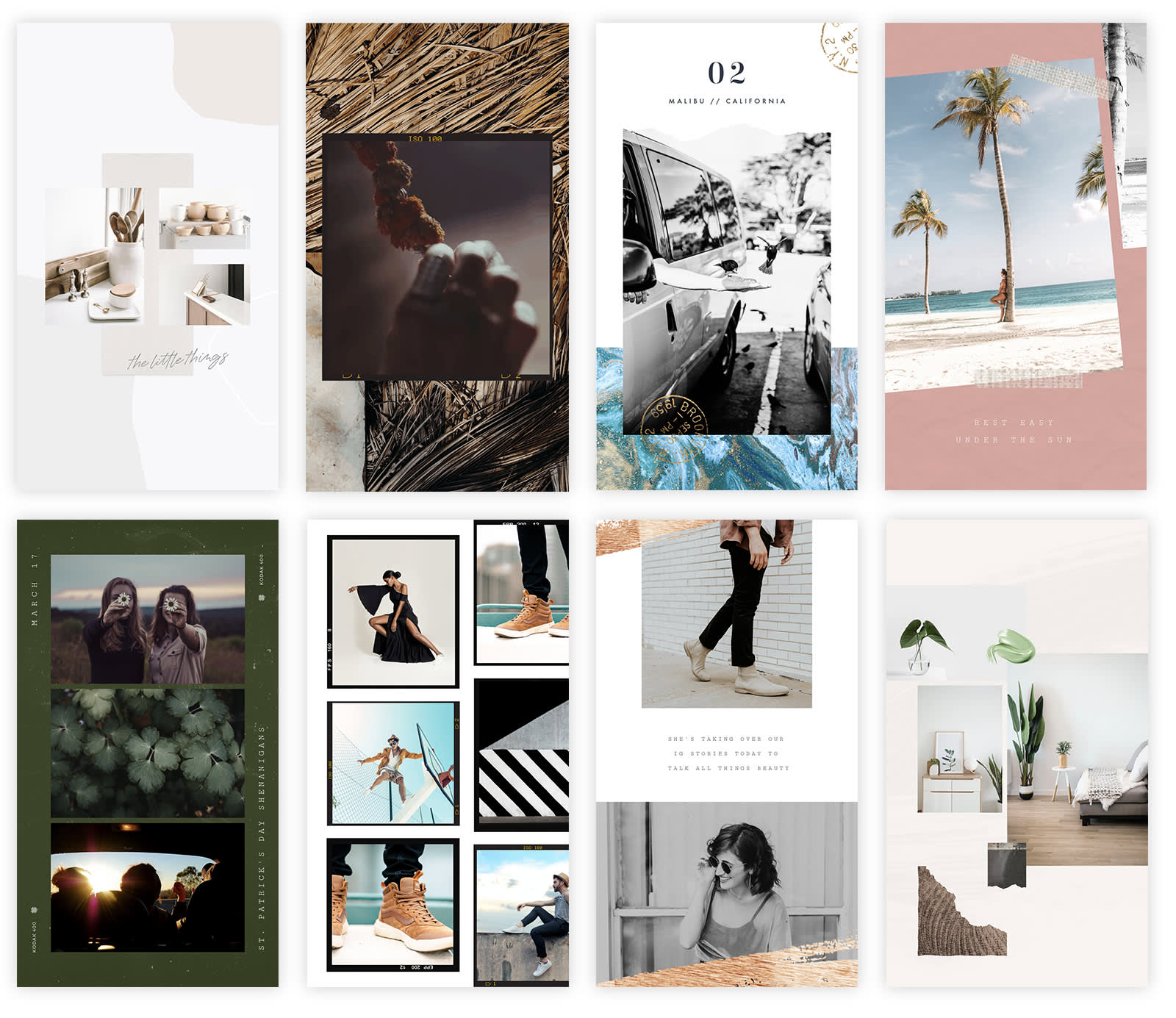
Steps:
- Open Instagram
- Swipe right to open Stories
- Tap the Layout icon (grid symbol)
- Choose a layout style (2, 3, 4, or more photos)
- Add photos from your gallery or camera
- Adjust and publish your story
✅ Best for clean collages
✅ No extra apps needed
Method 2: Add Multiple Photos Using the Sticker Tool
Instagram also lets you layer photos on top of each other using stickers.
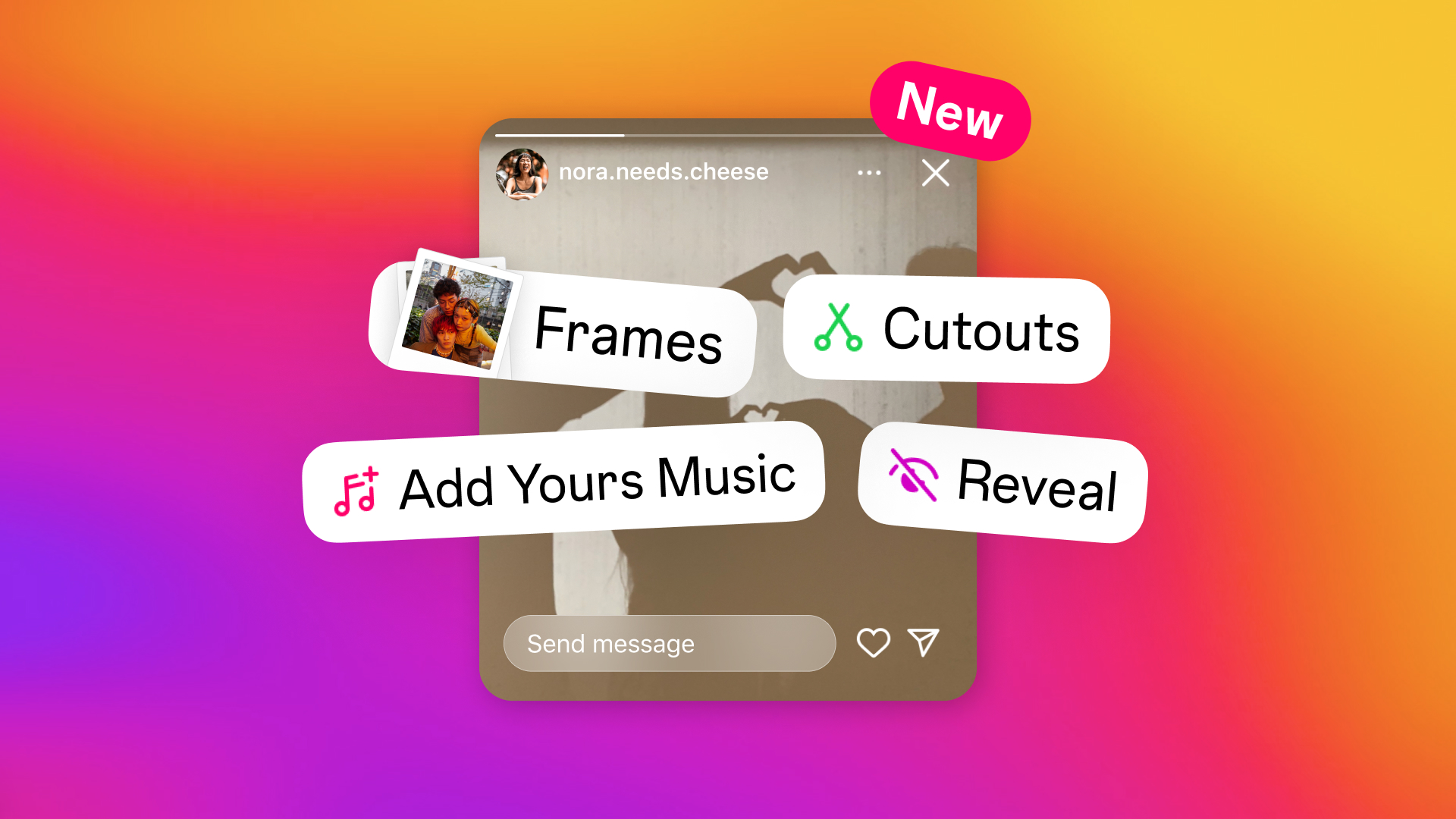


Steps:
- Open Instagram Stories
- Add your first photo as the background
- Tap the Sticker icon
- Select Photo
- Choose another image from your gallery
- Resize and move it
- Repeat to add more photos
✅ Perfect for creative designs
✅ Great for highlights, reactions, or memes
Method 3: Select Multiple Photos at Once from Gallery
If you want to post multiple photos as separate story slides, this method is ideal.


Steps:
- Swipe right to open Stories
- Tap the Gallery icon
- Tap Select Multiple
- Choose all the photos you want
- Edit each slide
- Post them together
⚠️ Note: These will appear as separate stories, not one collage.
Method 4: Add Multiple Photos Using Copy–Paste Trick
This is a lesser-known but powerful trick (mostly on iPhone).
Steps:
- Open your phone gallery
- Copy an image
- Go to Instagram Stories
- Paste it onto your story
- Repeat with other images
✅ Great for fast layering
✅ No layout limits
Method 5: Use Third-Party Apps for Advanced Layouts
If you want professional designs, try third-party apps.
Popular options:
- Canva
- Unfold
- Mojo
- PicsArt
These apps allow:
- Custom grids
- Text animations
- Brand templates
- Advanced editing
After designing, simply upload the final image to Instagram Stories.
Tips to Make Multi-Photo Instagram Stories Look Better
- Use the same colors/filters.
- Avoid cramming everything onto the screen.
- Leave spaces for your text and stickers.
- Include music and polls for engagement.
- Align and balance your pictures.
Simplicity works better and keeps viewers glued.
Common Problems & Remedial Measures
Problem: Can’t see the Layout option.
👉Update the Instagram app.
Problem: Photo sticker missing.
👉 Try switching accounts or reinstalling the app.
Problem: Looks cluttered.
👉 Choose fewer images or use a grid layout.
Final Thoughts
Now you know how to add multiple photos to an Instagram Story by all possible methods, i.e., layout, stickers, gallery selection, copy-and-paste, and even third-party apps. Layouts can be simple, beautiful collages or multi-layer designs that really catch your eye. With Instagram, you have all the tools at your disposal to play with. From there on, test various methods and find the one style that glows with your audience.
Frequently Asked Questions
Is it possible to upload several images to one single Instagram Story?
Of course, Instagram allows users to insert numerous photos in one story. It can either be done with the inbuilt Layout feature, the Photo sticker option, or simply using the copy-paste method. All those tools make it so much easier to create a collage or layered designs within one single story frame on Instagram.
How do I enable the possibility to add multiple pictures in an Instagram Story on an iPhone?
So, you first select a background photo for the story. Then, you tap on the sticker icon and select the Photo option to include more pictures from the gallery. You can then resize and move each picture as per your need. There is also the option called “copy-paste,” which means that when you select an image from your gallery, you copy it, and then you paste it right on the story.
How can I add pictures to an Instagram Story on an Android device?
Users of Android are able to insert several photos in a story due to the use of Layout (grid) functionality combined with a Photo sticker tool. You may select more than one photo stored in your gallery, but they are then posted as separate story slides and not as one collage.
Why can I not view the Layout option on Instagram Stories?
Missing layout options may be due to an outdated version of the app or a limited temporary rollout of a feature. Most minor issues are usually solved by updating the Instagram app, logging out of the account and signing in again, clearing the app cache, or even reinstalling the app.
Am I allowed to upload more than one image on an Instagram Story without using Layout?
Certainly, you can add several pictures without employing the Layout feature through either the Photo sticker option or through the copy-paste method. Third-party designed apps can create collages, which one can then post as an image in the story.
Can I upload several pictures at a time for Instagram Stories?
Instagram does allow for the selection of several photos simultaneously from the gallery. Each of these pictures will be put as a stop on the timeline for the story instead of adding it to a single story.
How many photos can I load into a single Instagram Story?
There is no specific limit to how many you can upload using the Photo sticker option or the method of copy-pasting. It would be advisable not to include exceptionally high numbers within a single story, as that might make it too cramped, although generally it holds visually for better clarity and engagement.